How-to guide
Does Apple Reminders Have a Weekly View? 3 Workarounds
The short version: no, not inside the Reminders app. But you can get close with the Scheduled list or the Calendar app. Here is how each workaround works, step by step, and where it falls short.
Published Updated
iOS 27 brought Reminders new quick-add tools, Shortcuts actions and an extra-large widget, but the app still looks much like it did in iOS 26: lists, smart lists and a Scheduled view. There is no seven-day grid. Here are three ways to get close, and where each one stops.
The three workarounds at a glance
| Workaround | Shows a 7-day layout | Undated reminders | Check off in place |
|---|---|---|---|
| Scheduled list in Reminders | No, one long list by date | Not shown | Yes |
| Scheduled Reminders in Calendar | Yes, in the sideways week view | Not shown | Yes, tap the circle |
| Reminders widget | No, one list | Depends on the list | Yes |
| A weekly planner app | Yes, by design | Depends on the app | Yes |
Workaround 1: the Scheduled list
- Open the Reminders app.
- Tap Scheduled at the top of the lists screen.
- Scroll: reminders are grouped under date headings, nearest first.
This is the quickest way to see what is coming up. Its limits: only reminders with a date appear, and it is a scrolling list, so a busy Thursday pushes Friday off the screen. The Today smart list is the daily equivalent: today's reminders plus overdue ones.
Workaround 2: reminders in Calendar's week view
Since iOS 18, the Calendar app can show your scheduled reminders next to your events. Apple's steps for iOS 27:
- Open the Calendar app and tap the Calendars button.
- Select Scheduled Reminders.
- For a week, rotate the iPhone sideways in Month or Day view. For a few days at a time, tap the Day view icon in Day view and choose Multi Day.
- Tap the circle next to a reminder to complete it. Completed reminders are dimmed.
All-day reminders appear in the all-day section at the top; reminders with a time appear at that time. This is the closest Apple gets to a weekly reminders view. The trade-offs: reminders share the screen with every meeting and birthday, reminders without a date never appear, and the full week view needs the phone held sideways. On an iPhone Duo opened in landscape, Calendar also offers a Week option in its view menu.
Workaround 3: a Reminders widget
A Reminders widget on the Home Screen shows one list, such as Today or Scheduled, and you can tick items off from it. iOS 27 adds an extra-large widget size that fills a whole Home Screen page. It is still one list, not a week, but it keeps the next few days in view without opening the app.
When a weekly planner app makes more sense
Reminders is built around due dates: a reminder exists, and it may have a date. A weekly planner is built the other way round: the week exists, and you put tasks on its days. That difference matters if you:
- plan on Sunday which day each task belongs to, without giving everything a time;
- want to see Monday to Sunday at a glance, held upright;
- want tasks you did not finish to move to the next day rather than pile up as overdue.
Weeklane is one option: it shows the week as seven short day lists on iPhone, iPad, Mac and Android, with Home and Lock Screen widgets on iPhone and a Home Screen widget on Android. A setting moves unfinished tasks to today. Reminders, repeating tasks and read-only calendar events are part of Weeklane Pro. For a wider choice, see the best weekly planner apps of 2026.
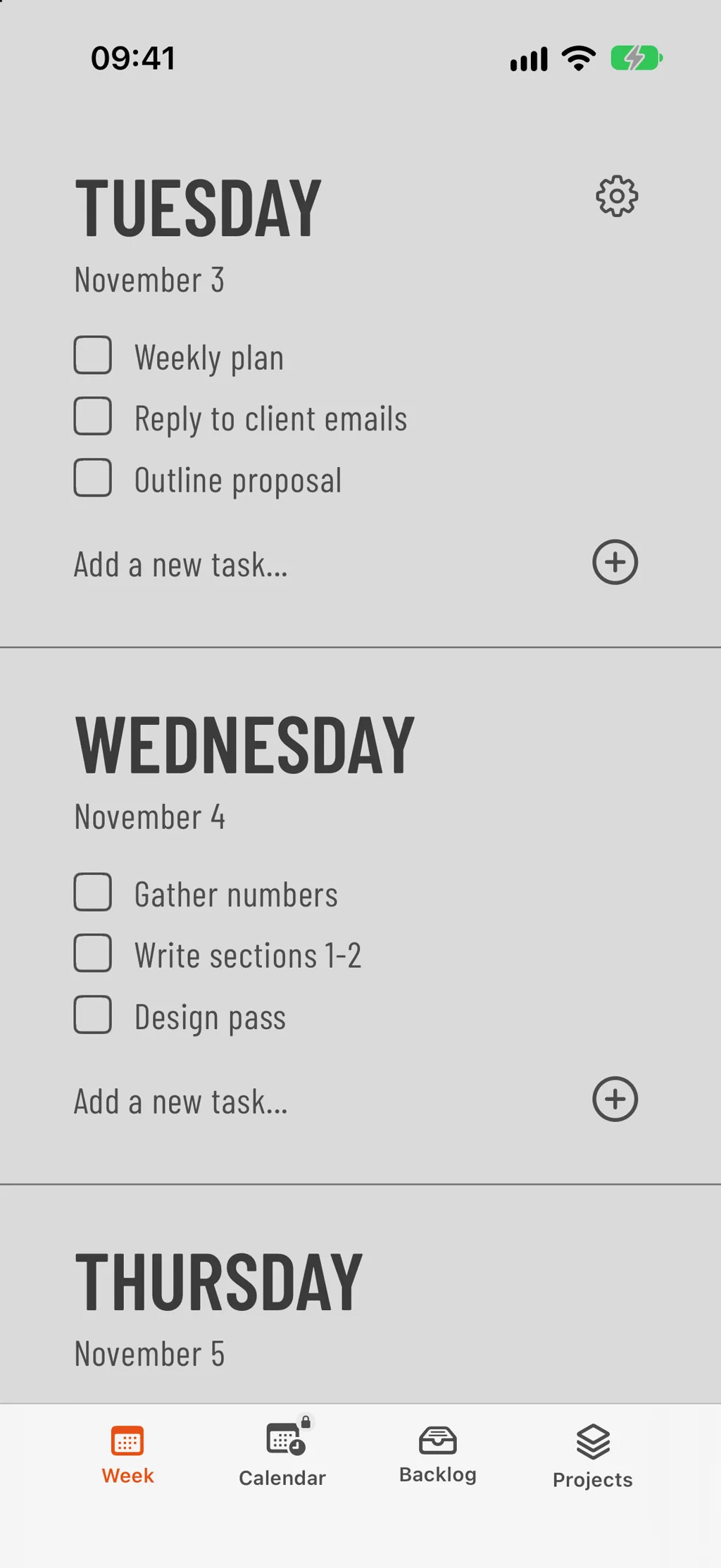
Reminders still has real strengths: it is free, built in, works with Siri, supports location-based reminders and shared lists, and sorts grocery lists. If those matter more to you than a week layout, the Calendar workaround is a good compromise.
Frequently asked questions
Does Apple Reminders have a week view?
No. As of iOS 27 the Reminders app has no week view. The Scheduled list shows every dated reminder in one list grouped by date, and the Calendar app can show reminders in its week view once you turn on Scheduled Reminders.
How do I see my reminders in a week view on iPhone?
Open Calendar, tap the Calendars button and select Scheduled Reminders. Then rotate the iPhone sideways in Month or Day view to get the week, or tap the Day view icon and choose Multi Day.
Why don't some reminders show up in Calendar?
Calendar only shows reminders that have a date. Reminders without a date stay in their list in the Reminders app. Add a date, or use the Today or Scheduled list for dated items only.
Can I check off reminders in the Calendar app?
Yes. Tap the circle next to a reminder's name in Calendar to complete it; completed reminders are dimmed. Tap a reminder and then Edit to change it.
Did iOS 27 add a weekly view to Reminders?
No. iOS 27 added new quick-add tools, Shortcuts actions for lists and sections, and an extra-large widget, but no week view in the Reminders app.
A to-do list that starts with the week
Weeklane shows your week as seven short day lists on iPhone, iPad, Mac and Android. The weekly planner is free; Weeklane Pro adds reminders, repeating tasks and read-only calendar events, with a 7-day free trial.

Scan to download
Related guides
- Best Weekly Planner Apps (2026): Honest Picks by Use Case — ten weekly planner apps compared, Apple Reminders included.
- Best Minimalist Weekly Planner Apps (2026 Comparison) — the simplest weekly planners, Reminders among them.
- To-Do List Widget for iPhone: Home Screen and Lock Screen Setup — put a to-do list on the Home Screen and the Lock Screen.
- How to Connect Your To-Do List to Claude (3 Ways) — let Claude read and add Apple Reminders or Weeklane tasks.
- Weekly Planner App: How to Plan Your Week in 5 Minutes — how to plan the week in five minutes, whatever the app.
- Guides