AI setup guide · Tested
How to Connect Your To-Do List to Grok
Grok can plan your week inside a real to-do app, not just in the chat. Connect Weeklane in about two minutes, then ask Grok to add tasks, set reminders and undo mistakes. We tested every step below.
Published Updated
What you need
- Grok: a Grok account on grok.com. Connectors may require a paid plan, so check yours.
- Weeklane: Weeklane 3.0 or later, signed in with Apple or Google in the app (Settings → Account), and Weeklane Pro (lifetime unlock included).
- Two minutes. That is all it took in our test.
Method A (easiest): ask Grok to connect it
Step 1: Ask Grok to add Weeklane
“Connect Weeklane” or “Add the Weeklane connector”In a Grok chat, type one of these. Grok can find the Weeklane connector and add it for you.
Step 2: Sign in and click Allow
A Weeklane window opens. Sign in with the same Apple or Google account as in the app, check the permissions and click Allow.
Step 3: Ask for your first task
That's it. Ask “What's on my Weeklane list this week?”, or try the prompts further down.
In our test this worked within minutes. If Grok can't find the connector, use Method B. It takes a little longer, but you stay in control of every field.
Method B: add Weeklane as a custom connector
Step 1: Open Connectors
grok.com → Plugins → ConnectorsOn grok.com, open Plugins. You land on the Connectors tab.
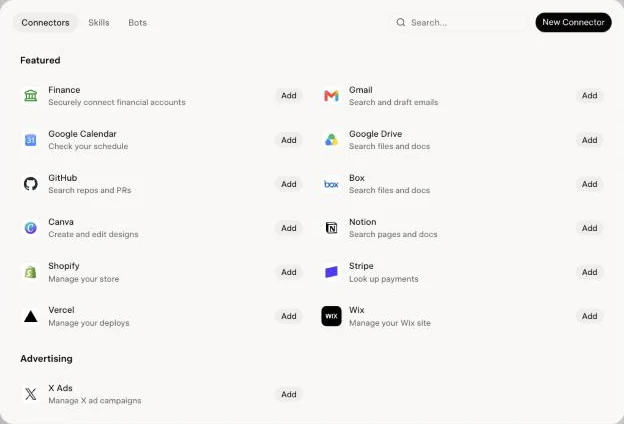
Grok → Plugins → Connectors. New Connector is at the top right. Step 2: Create a custom connector
New Connector → CustomClick New Connector at the top right, then choose Custom.
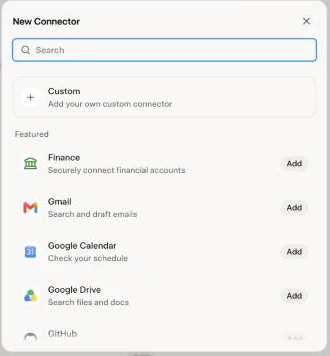
Choose Custom at the top of the list. Step 3: Name it and paste the URL
Name: Weeklane · Server URL: https://mcp.weeklane.app/mcpType Weeklane as the name, paste the server URL and click Add Connector.
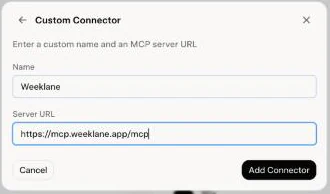
Name: Weeklane. Server URL: https://mcp.weeklane.app/mcp. Step 4: Sign in to Weeklane and click Allow
A sign-in window opens. Choose Sign in with Apple or Sign in with Google, using the same account as in the Weeklane app, then click Allow.
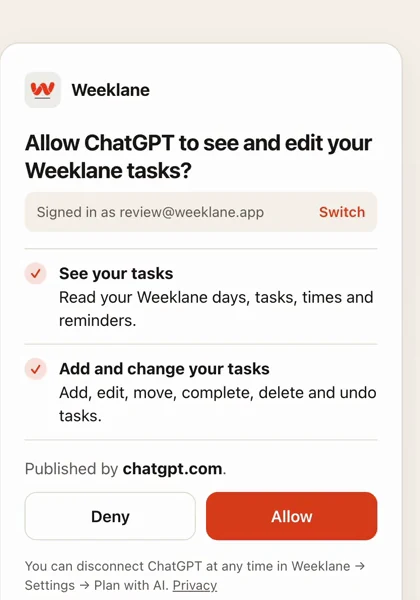
The Weeklane consent screen (shown here for ChatGPT; your assistant's name appears instead). Step 5: Check that it's connected
Back in Grok, Weeklane now shows as Added under Connected.
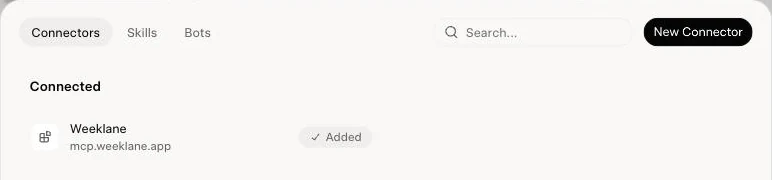
Done: Weeklane shows as Added under Connected. Step 6: Turn it on in a chat
+ → Connectors → WeeklaneIn a chat, click + next to the message box, open Connectors and switch Weeklane on.
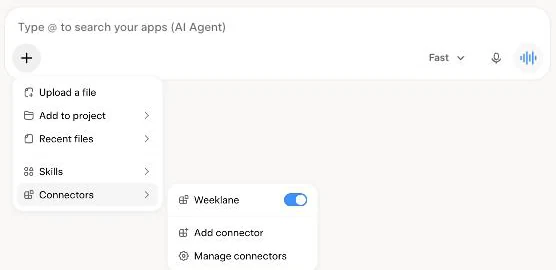
In a chat: + → Connectors → Weeklane on.
Your first task (and how to undo it)
We asked Grok for one task with a reminder. It took about eight seconds, and the task was on the phone right after.
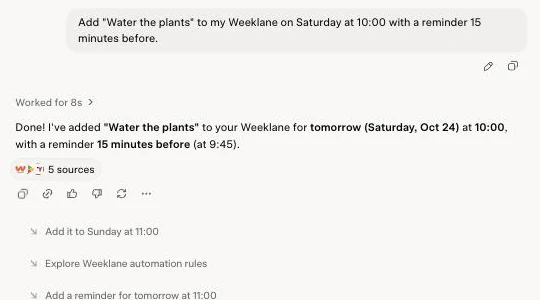
Then we asked Grok to take it back. One sentence, and the task was gone from Weeklane too.
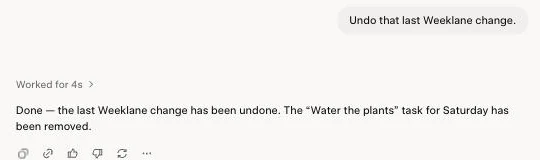
Check your phone
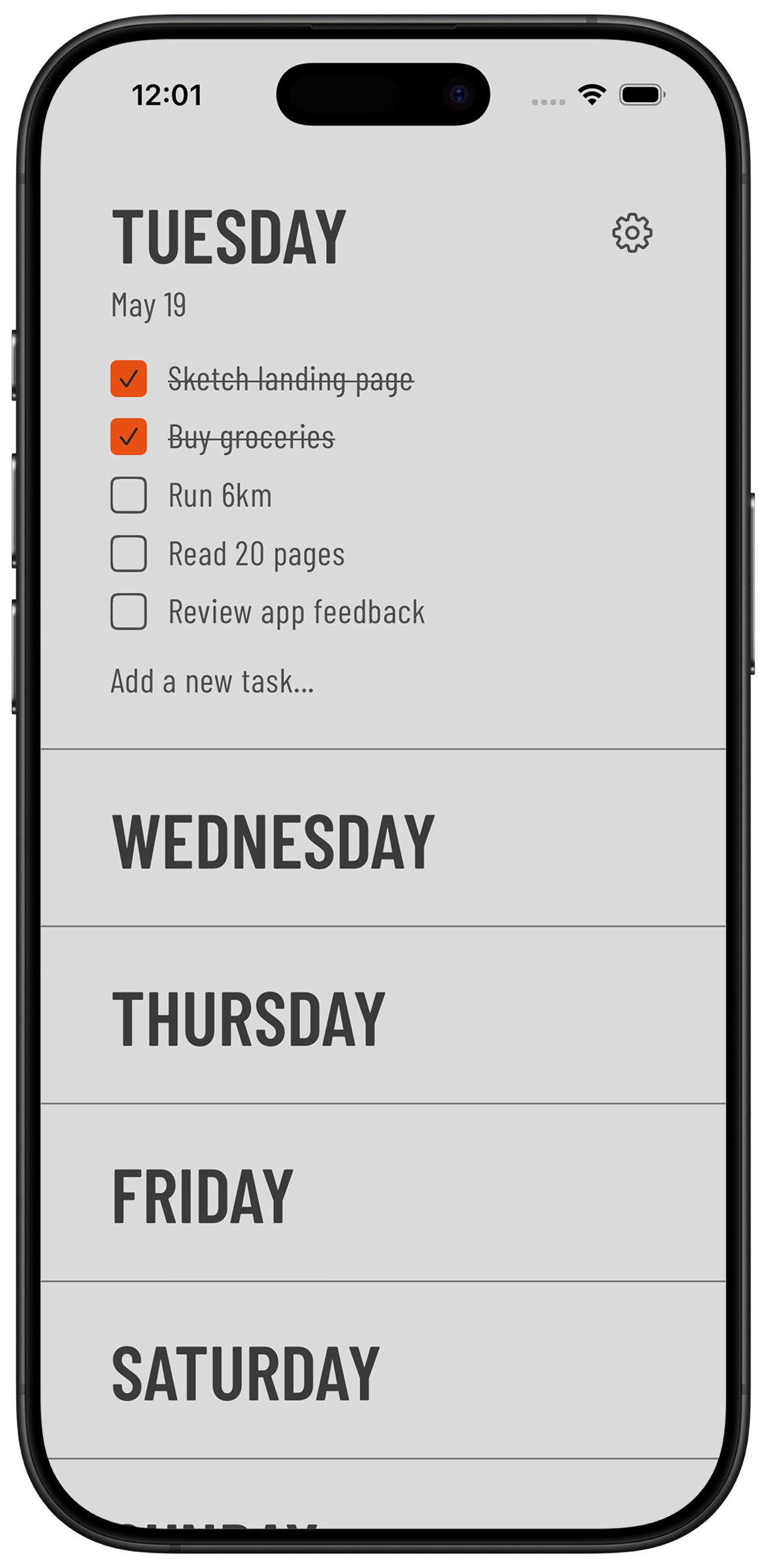
Open Weeklane on your iPhone, iPad, Mac or Android phone. Tasks that Grok adds show up on the right day within seconds, and reminders are scheduled on the phone like the ones you add yourself.
What you can say
Talk to Grok like you would to a helpful assistant. Mention Weeklane in the first message so it knows which tool to use. Start with one small request, check the app, then go bigger.
- “What's on my Weeklane list this week?”
- “Add “Water the plants” to my Weeklane on Saturday at 10:00 with a reminder 15 minutes before.”
- “Plan my week in Weeklane: gym Monday, Wednesday and Friday at 7, dentist Thursday at 10.”
- “Move everything I didn't finish today to tomorrow.”
- “Make “team check-in” repeat every Monday at 9.”
- “Turn on Task Lock from 9:00 with my Social list.”
- “Undo that last Weeklane change.”
Long list in your head? Start with a brain dump to AI and let Grok add the sorted week in one go. Weeklane takes up to 50 tasks at once. Task Lock works on iPhone and iPad only. The assistant can turn it on or off, set the start time, allow breaks and switch between block lists you saved, but it can never see or choose which apps are blocked.
If something doesn't work
- Grok says it can't reach Weeklane. Check that the Weeklane toggle is on in the chat (+ → Connectors).
- Sign-in says you need Pro. Plan with AI is part of Weeklane Pro. Make sure you sign in with the same Apple or Google account that has Pro in the app.
- No Connectors or Plugins in Grok. Connectors may depend on your Grok plan. See xAI's connector docs.
- Tasks don't show up on the phone. In Weeklane, check Settings → Account: you must be signed in with the same account you used in Grok.
Undo, privacy and disconnecting
- Undo. Ask the assistant to undo its last Weeklane change, or do it yourself in Weeklane under Settings → Plan with AI, where every AI change is listed.
- Only your own tasks. The assistant works with your personal tasks. It never sees shared projects.
- Disconnect any time. In Weeklane, open Settings → Plan with AI and tap Revoke next to the assistant. You can also remove the connector on the assistant's side.
- Privacy. Weeklane does not sell your tasks or use them to train AI. The assistant's own privacy terms apply to your chats.
Using another assistant?
- Claude — one click from Claude's connector directory.
- ChatGPT — add Weeklane as a custom MCP server.
- Perplexity — custom remote connector.
- Mistral Le Chat — custom MCP connector.
- Gemini — custom app with an MCP URL.
Frequently asked questions
Does Grok have connectors?
Yes. On grok.com, Plugins → Connectors lists ready-made connectors, and New Connector → Custom lets you add any app that has an MCP server, such as Weeklane.
Do I need a paid Grok plan?
Grok's connectors may require a paid plan. We tested on a paid account, so check your own plan in xAI's documentation. On the Weeklane side you need Weeklane Pro.
What is the Weeklane MCP server URL for Grok?
https://mcp.weeklane.app/mcp. Paste it as the Server URL of a custom connector and name it Weeklane.
Can Grok set reminders on my phone?
Yes, through Weeklane. Ask for a task with a reminder, such as “15 minutes before”, and Weeklane schedules it on your phone like a reminder you added yourself.
What can Grok do with my Weeklane tasks?
Read your week, search tasks, add tasks with a time and reminder, edit, move, check off and delete tasks (up to 50 at once), manage repeating tasks and undo its own last change. On iPhone and iPad it can also control Task Lock, but it can never see or choose which apps are blocked.
What do I need on the Weeklane side?
Weeklane 3.0 or later, signed in with Apple or Google in the app (Settings → Account), and Weeklane Pro (lifetime unlock included). The free weekly planner works without Pro, but connecting an assistant does not.
How do I disconnect or undo a change?
Ask Grok to undo its last Weeklane change, or open Weeklane → Settings → Plan with AI to see every AI change, undo the last one or tap Revoke to disconnect.
Is my data used to train AI?
Weeklane does not sell your tasks or use them to train AI. The assistant's own privacy terms apply to your chats.
Get Weeklane, then connect your assistant
Weeklane shows your week as seven short day lists on iPhone, iPad, Mac and Android. The weekly planner is free; Plan with AI is part of Weeklane Pro.
Scan to download
Related guides
- How to Connect Your To-Do List to Claude (3 Ways) — one click from Claude's connector directory.
- Can ChatGPT Manage Your To-Do List? 3 Setups That Work — add Weeklane to ChatGPT as a custom MCP server.
- How to Connect Your To-Do List to Perplexity — add Weeklane as a custom remote connector.
- How to Connect Your To-Do List to Mistral Le Chat — Mistral's assistant, custom connectors on the free plan too.
- How to Connect Your To-Do List to Gemini — add Weeklane as a custom app with its MCP URL.
- How to Brain Dump to AI and Get a To-Do List for the Week — turn a messy brain dump into a week first.
- Guides