Focus guide
How to Stop Doomscrolling: A To-Do-First Phone Routine
Willpower loses to an infinite feed. A better plan: make the first thing your phone shows you a short list of what today is for — and make the feed something you get after it.
Published Updated
Short answer: you stop doomscrolling by changing what happens in the two seconds after you pick up your phone. Make your to-do list the first thing you see, move the scrolling apps out of reach, and decide that the feed comes after today's top tasks — ideally enforced by an app lock rather than willpower.
Doomscrolling is not a character flaw. Feeds are designed to have no stopping point, and the urge usually arrives during a gap: waking up, waiting, avoiding a hard task, winding down at night. The routine below targets those gaps directly.
The to-do-first routine in 7 steps
- Write tomorrow's three tasks tonight. Not ten. Three things that would make tomorrow a good day. A short list is one you will actually look at in the morning.
- Put the list where the feed used to be. Add a to-do widget to the first Home Screen page and move social apps off it — into a folder on the last page, or the App Library only.
- No feed before the first task. The morning scroll sets the tone for the whole day. Make the rule simple: task one first, then whatever you like.
- Turn off social notifications. Every badge is an invitation. Keep notifications for people (messages, calls), and switch them off for feeds.
- Make the feed earn its place. Use an app lock that unlocks only when today's tasks are checked off. It replaces a hundred small decisions with one you made calmly the night before.
- Have a two-minute replacement ready. When the urge hits, do one tiny thing from the list instead: reply to that email, fill the water bottle, read one page. Momentum beats resistance.
- Charge the phone outside the bedroom. Night scrolling is the hardest to stop because you are tired. A cheap alarm clock removes the whole battle.
Match the trigger to the fix
| When it happens | What is really going on | What to do instead |
|---|---|---|
| Right after waking up | Low energy, no plan yet | Open your to-do widget first; lock feeds until task one is done |
| Before a hard task | Avoidance | Shrink the task to a 5-minute first step and write that on the list |
| Waiting or commuting | Boredom in a short gap | Keep a podcast, book or one small task ready for gaps |
| After a stressful moment | Looking for relief | Walk, stretch or message a friend — relief without a feed |
| In bed at night | Tired, low self-control | Phone charges outside the bedroom; plan tomorrow before bed instead |
For the blocking side of the routine, the complete guide to app blocking on iPhone compares every option, and how to block Instagram until your to-do list is done walks through the most common case. Keep the day's list short with the Ivy Lee method, so finishing it is realistic.
Why a to-do list beats a timer
Built-in limits like iPhone Screen Time are useful for noticing a problem, but a time limit has two flaws. On iOS 27, Screen Time limits for yourself apply to whole categories such as Social, not single apps, so you cannot cap only the one app that pulls you in (on iOS 26 or earlier you could, but Ignore Limit was one tap away). And the block ends at a fixed time whether or not anything got done. A list-based approach ties the reward to progress. You are not counting minutes; you are finishing the three things that matter and then enjoying the feed without guilt.
That is the idea behind task-based app blockers: you choose the apps, and they stay locked until today's list is done. See our guide to the to-do list that blocks apps for how they compare.
Common mistakes
- Going cold turkey on everything. Deleting every app usually lasts three days. Locking the two worst offenders until your tasks are done lasts much longer.
- A to-do list that is too long. If the list never gets finished, the feed never gets earned and you will abandon the rule. Three to five tasks.
- Vague tasks. "Be productive" cannot be checked off. "Draft the first paragraph" can.
- Blaming yourself after a slip. A bad evening is data, not failure. Notice which trigger caught you and adjust the setup, not your self-image.
How Weeklane fits in
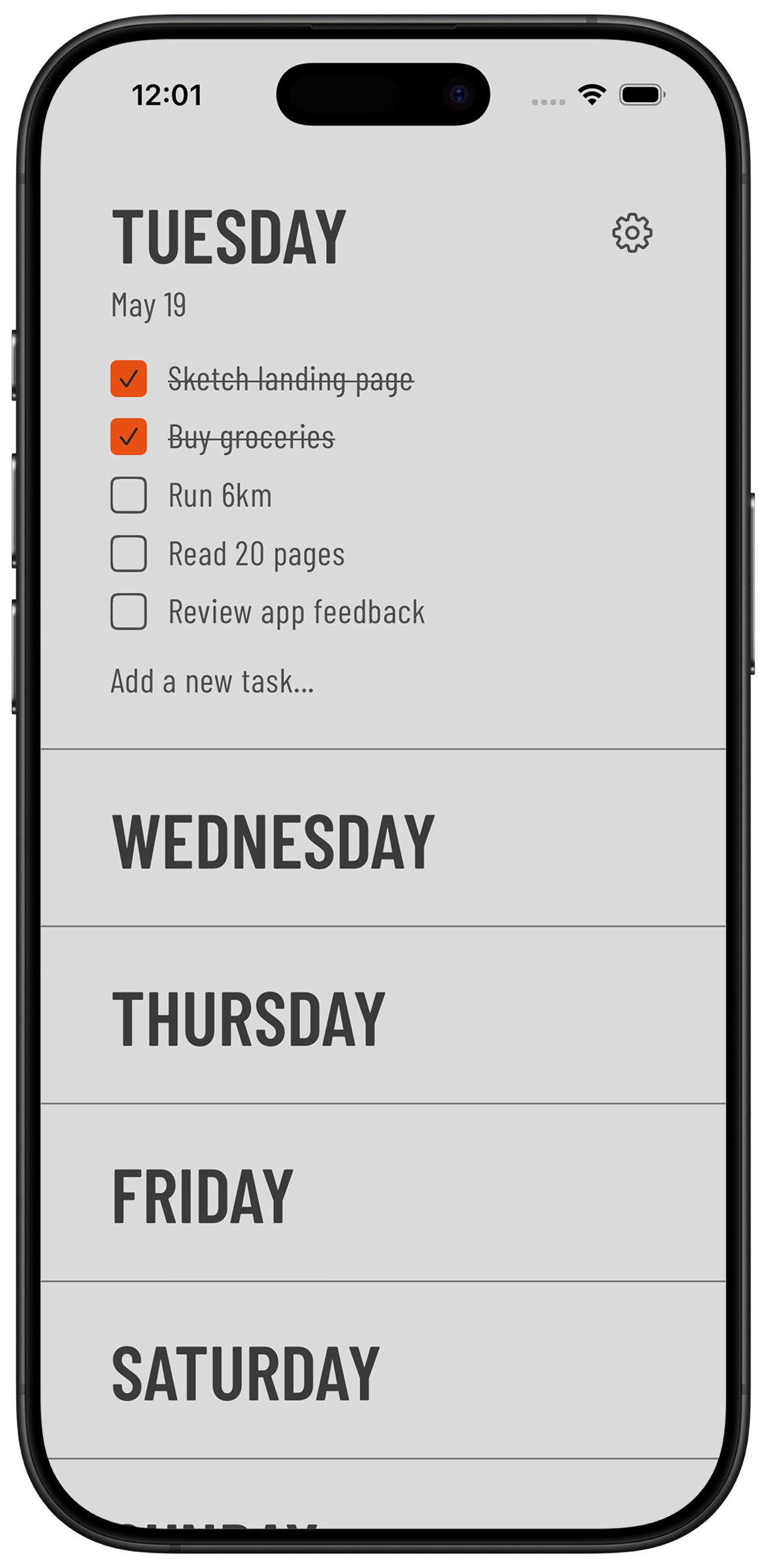
Weeklane is a minimalist weekly planner: your week as seven short day lists, with Home Screen widgets so today's tasks are the first thing you see. It is free to use, with personal tasks stored on your device. Weeklane 2.5 adds Task Lock: choose apps like Instagram or TikTok, and websites such as instagram.com or tiktok.com, and they stay locked until today's tasks are checked off. Task Lock is part of Weeklane Pro on iPhone and iPad; you find it under Settings (the gear) in Weeklane.
When it is more than a habit
If scrolling is how you cope with anxiety, low mood or sleeplessness, blocking apps treats the symptom, not the cause. That is still worth doing, but please also talk to someone you trust or a professional. A planner can make your day lighter; it cannot replace support.
Frequently asked
What is the fastest way to stop doomscrolling?
Change the first screen you see. Put a to-do widget on your main Home Screen, move social apps off it, and do your first task before opening any feed. Locking the worst apps until today's tasks are done makes the rule stick.
Do app blockers actually help with doomscrolling?
They help most when they are hard to bypass and tied to something meaningful. Time limits end on the clock, and on iOS 27 Screen Time only limits whole categories, not single apps; task-based blockers that unlock only after you finish today's to-do list remove the in-the-moment decision.
How do I stop scrolling TikTok or Instagram in the morning?
Charge your phone away from the bed, open your to-do list first, and lock TikTok and Instagram until your first task is done. Turning off their notifications removes most of the pull.
Is it better to delete social media apps?
Deleting works for some people but often does not last. Keeping the apps but making them harder to open — off the Home Screen, notifications off, locked until today's list is done — is easier to sustain.
Make your list the first thing you see
Weeklane puts today's tasks on your Home Screen. Free to plan; Task Lock is new in Weeklane 2.5 with Pro.
Scan to download
Related guides
- App Blocking on iPhone: The Complete Guide (2026) — the complete guide to app blocking on iPhone, with every approach compared.
- A To-Do List That Blocks Apps Until Your Tasks Are Done — how task-based app blockers compare with Screen Time and focus timers.
- How to Block Instagram Until Your To-Do List Is Done — lock Instagram, TikTok and YouTube until today's list is done.
- To-Do List Widget for iPhone: A Home Screen Setup Guide — set up the Home Screen so the list comes first.
- Ivy Lee Method: The 6-Task Daily Productivity System — pick the few tasks that matter each evening.
- Sunday Reset Routine: A 15-Minute Weekly Checklist — a 15-minute weekly reset that keeps the list short.
- Opal Alternative: Weeklane Task Lock vs Opal — how Opal's schedules and focus timers compare with a lock that lifts when today is done.
- one sec Alternative: Weeklane Task Lock vs one sec — a short pause before each app vs a lock until today's list is done.
- Screen Time Calculator — see your scrolling as hours a year and years of waking life.
- Guides