Focus guide
A To-Do List That Blocks Apps Until Your Tasks Are Done
Timers and daily limits are easy to wave away. A task-based blocker asks a better question: is today's list done yet? Here is how the approach works, what to look for, and how to set it up so it actually holds.
Published Updated
Short answer: a to-do list app that blocks apps lets you choose distracting apps — usually social media, short video and games — and keeps them locked until you have checked off the tasks you planned for today. Once the list is done, the apps unlock automatically. On iPhone these apps use Apple's Screen Time framework, so the lock is enforced by iOS itself rather than by a reminder you can swipe away.
That one change — unlocking by progress instead of by time — is why people who have given up on ordinary blockers often stick with this kind. You are not negotiating with a timer at 10:40 in the morning. You are finishing three things you already decided mattered.
Three ways to limit apps, compared
| Approach | What unlocks the apps | Typical weak spot | Best for |
|---|---|---|---|
| Screen Time / Digital Wellbeing limits | A daily time allowance runs out, then a limit screen appears | On iPhone with iOS 27, limits cover whole categories, not single apps (on iOS 26 or earlier, one tap on Ignore Limit) | Noticing how much you use your phone |
| Focus timers and schedule blockers | A timer or a fixed schedule ends | The block ends whether or not anything got done | Protecting known deep-work hours |
| Task-based blockers | You complete the tasks on today's list | Only as honest as the list you write | Starting the day with the important things first |
These three ways are compared in more depth, alongside Focus modes and Shortcuts, in our complete guide to app blocking on iPhone. If you want the built-in route first, start with how to block apps on iPhone and how to make Screen Time stricter.
Why task-based blocking works better for many people
- The reward is attached to the right thing. A timer rewards waiting. A task-based lock rewards finishing. The feed becomes the thing you get after the work, not the thing you do instead of it.
- It removes the in-the-moment decision. Doomscrolling rarely starts as a choice. It starts as a reflexive tap. A lock moves the decision to the evening before, when you wrote the list calmly.
- It has a natural end. Most blockers either nag all day or switch off by a clock. Here the lock ends the moment the list is done, so a productive morning earns a free afternoon.
- It makes the list visible. Every time you reach for a locked app, you see what is left. That is a better nudge than any notification.
What to look for in a to-do list that blocks apps
- System-level blocking. On iPhone, look for apps that use Apple's Screen Time permission. The block then works even if the to-do app is closed, and removing it needs a deliberate step in Settings.
- You pick the apps, not a preset list. Your distraction might be Reddit, YouTube or a game, not just Instagram and TikTok. Choosing individual apps matters, and it is one thing built-in Screen Time no longer does: on iOS 27, its limits for yourself apply to whole categories such as Social, not single apps.
- The lock follows today's list. The best version unlocks when today's tasks are done — not when you have hit some separate streak or score.
- A real planner underneath. If the to-do list is an afterthought bolted onto a blocker, you will stop maintaining it. You want a list you would use even with the lock switched off.
- A way out for emergencies. Sometimes you genuinely need an app. A good tool lets you pause the lock deliberately rather than forcing you to uninstall it.
Apps that link blocking to your tasks
This is a young category, mostly on iPhone. A few examples you will find in the App Store: Bloko, which locks chosen apps until your tasks are finished; To-Doo Boo, which blocks apps when you miss a task deadline; and Checklist To Do & App Blocker, which keeps apps blocked until the day's checklist is complete. Popular general blockers such as Opal focus on schedules, timers and session limits rather than tying the unlock to a to-do list. Check each listing for current features and pricing before you commit.
How to set up a task lock that actually holds
- Write tomorrow's list tonight. Three to five tasks. Writing it the evening before stops you from padding the list with easy wins in the morning.
- Make every task checkable. "Send the invoice" is checkable. "Work on finances" is not. A lock only works when done is obvious.
- Lock only the apps you lose time to. Start with two or three. Blocking messaging or maps creates the frustration that makes people switch the whole thing off.
- Put the list on your Home Screen. A to-do widget next to where the locked apps used to be means the first thing you see is the next task.
- Do the hardest task first. The lock is strongest early in the day. Spend it on the task you are most likely to avoid.
- Never check off a task you have not done. The system runs on honesty. The first time you fake it, the lock stops meaning anything.
Task Lock in Weeklane
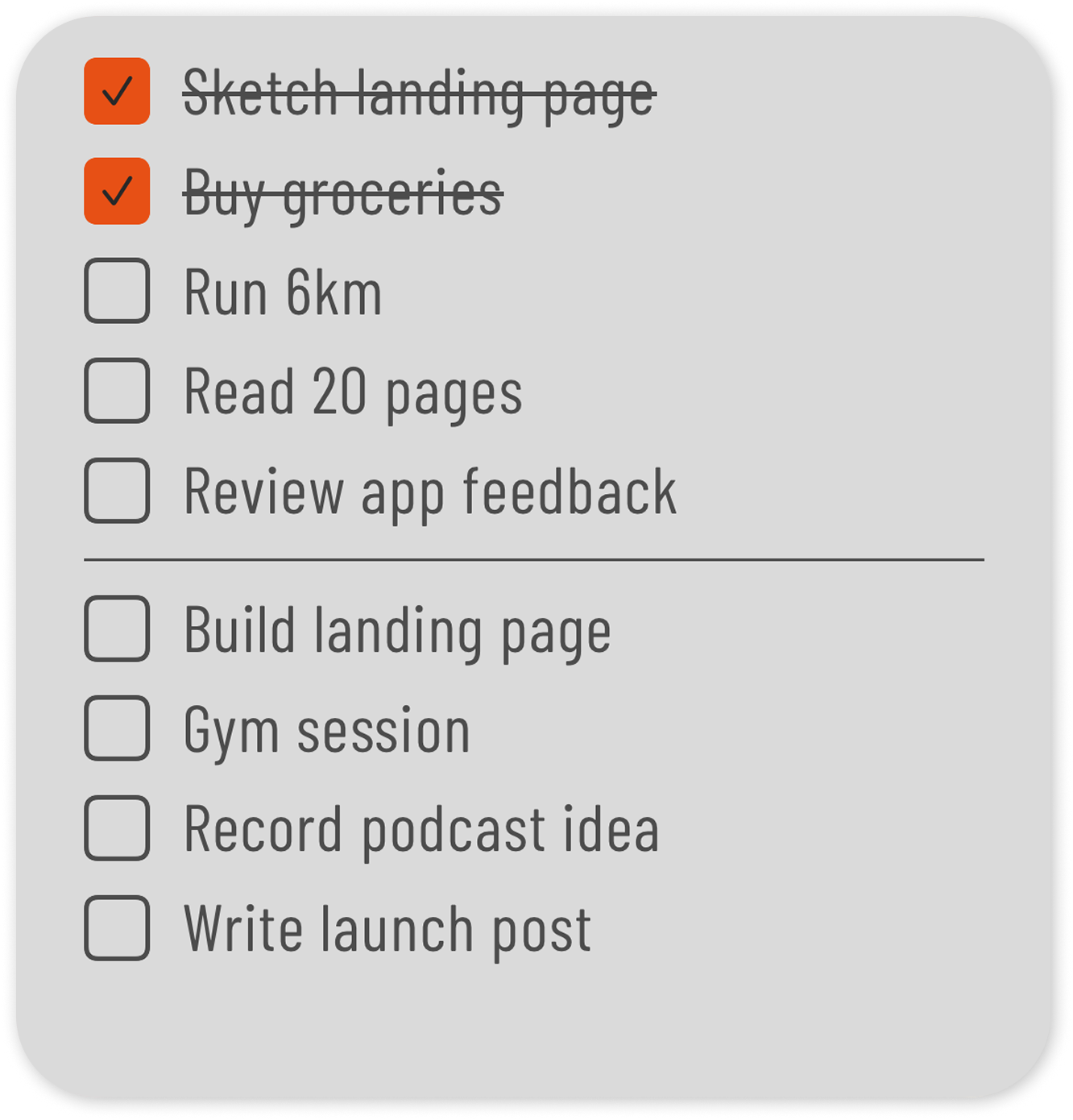
Weeklane is a minimalist weekly planner for iPhone, iPad, Mac and Android. Weeklane 2.5 adds Task Lock: you pick the apps and websites that steal your time, such as Instagram or TikTok, and they stay locked while today still has open tasks in Weeklane. Check off the last one and they unlock automatically. Tasks scheduled later today only lock from their time, and an optional 15-minute break is there when you need it. It uses Apple's Screen Time API on iPhone and iPad, Weeklane never sees which apps or sites you use, and it is part of Weeklane Pro. To set it up, open Weeklane, tap Settings (the gear), then Task Lock, and choose the apps and websites to lock.
The weekly planner underneath stays the same: your week as seven short day lists, free to use, with personal tasks stored on your device rather than in an account.
The honest limits
A task-based blocker is a commitment device, not a cure. You can always revoke the Screen Time permission or check off a task you have not done. If your scrolling is driven by anxiety, stress or sleep problems, the lock will only move the habit elsewhere — treat it as one tool alongside fixing the cause, and talk to someone if it feels bigger than a habit.
Frequently asked
Is there an app that blocks apps until you finish your to-do list?
Yes. Task-based blockers such as Bloko, To-Doo Boo and Checklist To Do & App Blocker on iPhone tie app access to completing tasks, and Weeklane Task Lock (since Weeklane 2.5) keeps chosen apps locked until today's tasks are checked off.
Can iPhone Screen Time block apps until tasks are done?
Not on its own. Built-in Screen Time limits unlock by time. On iOS 27, they apply to whole categories such as Social, not single apps, and there is no Ignore Limit button; on iOS 26 or earlier, you could limit a single app, but Ignore Limit was one tap away without a passcode. Third-party apps can use Apple's Screen Time framework to lock individual apps you choose until a condition is met, such as finishing a to-do list.
Will a to-do list app see which apps I use?
Apps built on Apple's Screen Time framework select apps through a system picker, and iOS does not hand the app a readable list of what you chose or your browsing. Check each app's privacy policy for specifics.
What if I need a locked app urgently?
Use the app's pause or emergency option, or remove the Screen Time permission in Settings. Keep messaging, maps and banking off the locked list so a block never gets in the way of something important.
When is Weeklane Task Lock available?
Task Lock is available now in Weeklane 2.5 on iPhone and iPad as part of Weeklane Pro. It is not on Android yet. The weekly planner itself is free on iPhone, iPad, Mac and Android.
Can Weeklane Task Lock block websites as well as apps?
Yes. Task Lock uses Apple's Screen Time picker, where you can choose apps, app categories and websites. Open Weeklane, tap Settings (the gear), then Task Lock, and add the apps and websites to lock.
Plan today, then earn the feed
Weeklane is a calm weekly to-do list with Home Screen widgets. Free to plan; Task Lock is new in Weeklane 2.5 with Pro.
Scan to download
Related guides
- App Blocking on iPhone: The Complete Guide (2026) — the complete guide to app blocking on iPhone, with every approach compared.
- How to Block Apps on iPhone: Screen Time, Focus and Task Lock — every way to block apps on iPhone, from Screen Time to Task Lock.
- How to Stop Doomscrolling: A To-Do-First Phone Routine — a full routine for breaking the scroll habit, with or without a blocker.
- Opal Alternative: Weeklane Task Lock vs Opal — Weeklane Task Lock vs Opal, compared honestly.
- one sec Alternative: Weeklane Task Lock vs one sec — Weeklane Task Lock vs one sec, compared honestly.
- Ivy Lee Method: The 6-Task Daily Productivity System — how to pick the short list that unlocks your day.
- How to Block Instagram Until Your To-Do List Is Done — step by step: lock Instagram, TikTok and YouTube until today is done.
- ADHD Planner: A Simple Weekly Planner That Actually Works — a low-friction weekly system for ADHD brains.
- To-Do List Widget for iPhone: A Home Screen Setup Guide — keep today's list on the Home Screen.
- How to Make iPhone Screen Time Stricter (iOS 27 and iOS 26) — close the Screen Time loopholes first.
- How to Connect Your To-Do List to Claude (3 Ways) — let Claude switch Task Lock on for you.
- Guides