How-to guide
Does Microsoft To Do Have a Weekly View? 3 Workarounds
The short version: no. Microsoft To Do shows today (My Day) and a list of dated tasks (Planned), but no Monday-to-Sunday view. Here are three ways to get close, step by step, and where each one stops.
Published Updated
Microsoft To Do is a good list app: free with a Microsoft account, on Windows, Mac, iPhone, Android and the web, and built into Outlook. But its views are lists, not a calendar. People have asked for a "My Week" next to My Day on Microsoft's own feedback forum for years. Until that arrives, these are the three workarounds that hold up.
The three workarounds at a glance
| Workaround | Shows the week side by side | Tasks without a due date | Best for |
|---|---|---|---|
| Planned smart list | No, one list grouped by date | Not shown | A quick look at what is due soon |
| Outlook calendar + My Day pane | Yes, as calendar events in week view | Yes, drag any task | Blocking time for tasks at work |
| One list per weekday | No, but each day is a list | Yes, the list is the day | Planning tasks onto days by hand |
| A weekly planner app | Yes, by design | Depends on the app | Planning the week on Sunday |
Workaround 1: the Planned smart list
- Give tasks a due date: open a task and pick Today, Tomorrow, Next week or a date.
- Open Planned in the sidebar. Every task with a due date or reminder appears there on its own.
- Read it top to bottom: overdue tasks first, then today, tomorrow and later dates.
This is the quickest way to see the coming days, and it works the same on every device. Its limits: tasks without a due date never appear, and it is one scrolling list, so a busy Tuesday pushes Thursday off the screen. If Planned is missing from your sidebar, turn it on under Settings → Smart lists.
Workaround 2: Outlook's calendar with the My Day pane
If you use Outlook for work, this is the closest Microsoft gets to a weekly to-do view. Your To Do tasks live in a pane next to the calendar, and you drag them onto the week. Microsoft's steps for the new Outlook for Windows and Outlook on the web:
- Open Calendar in Outlook and switch to Week or Work week.
- Open the My Day pane (the My Day button at the top right) and select the To Do tab.
- Drag a task to the day and time you want to work on it. Outlook creates a calendar event for it.
The result is a real week: tasks sit as blocks between your meetings. The trade-offs: dragging is manual (tasks with a due date do not appear on the calendar on their own), the event and the task are separate, so ticking one off does not tick off the other, and the calendar gets busy fast. In classic Outlook for Windows the same idea works with the To-Do Bar.
Workaround 3: one list per weekday
- Create seven lists: Monday, Tuesday, Wednesday, Thursday, Friday, Saturday, Sunday. Put them in a group called This week.
- On Sunday, move each task into the day you will do it (drag it, or open the task and choose Move task to).
- Each morning, open that day's list and add the tasks to My Day.
- At the end of the week, move what is left into next week's days, or delete it.
This copies how a paper weekly planner works, and it does not need due dates. It is still a sidebar of seven lists, though, not seven days you can see at once, and nothing moves unfinished tasks forward for you.
When a weekly planner app makes more sense
To Do is built around lists and due dates: a task exists, and it may have a date. A weekly planner is built the other way round: the week exists, and you put tasks on its days. That difference matters if you:
- plan on Sunday which day each task belongs to, without giving everything a due date;
- want to see Monday to Sunday at a glance on your phone;
- want unfinished tasks to move to today rather than pile up as overdue.
| App | What the week looks like | Platforms |
|---|---|---|
| Weeklane | Seven short day lists, one per day | iPhone, iPad, Mac, Android |
| Tweek | A paper-style week on one screen | Web, iPhone, Android |
| TeuxDeux | Day columns side by side | Web, iPhone |
| WeekToDo | Day columns, free and open source | Windows, Mac, Linux |
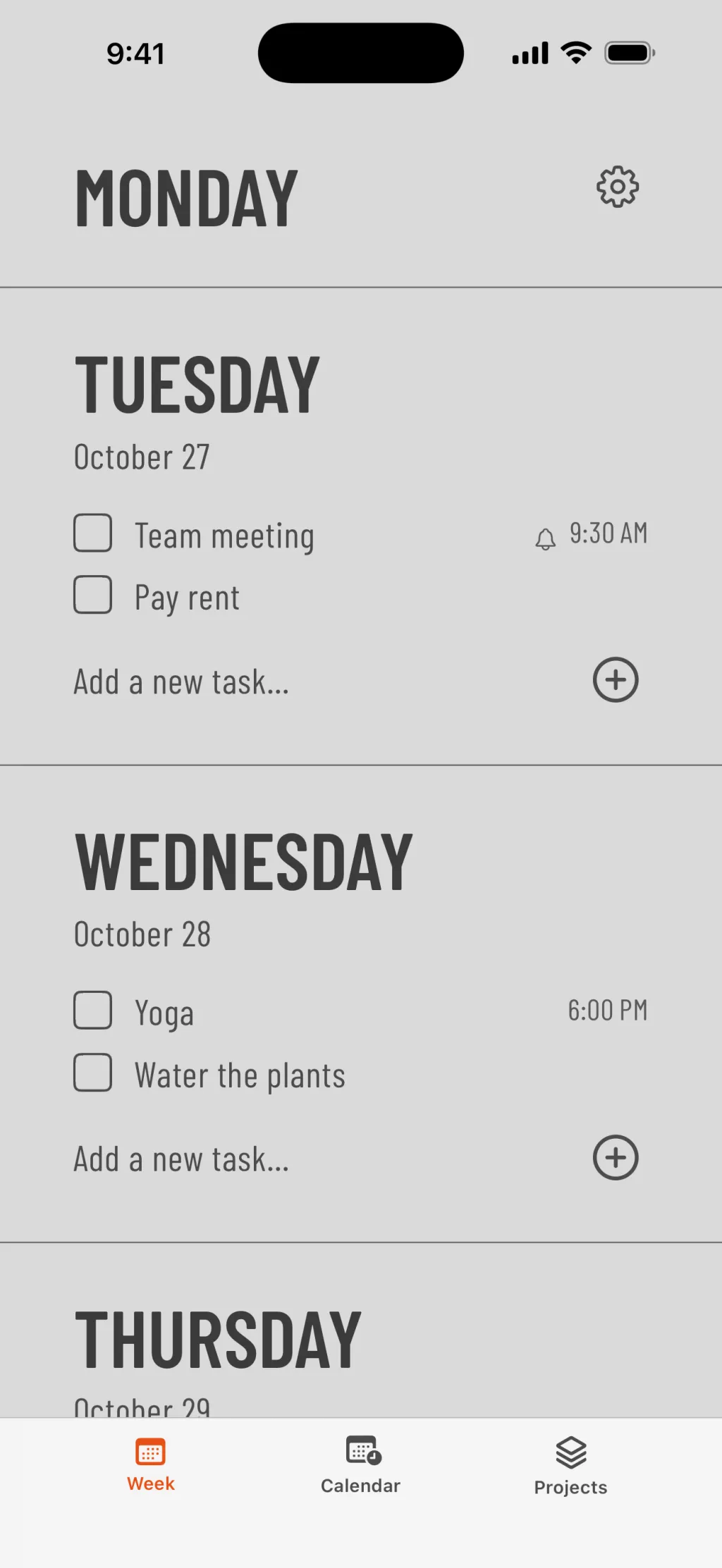
Weeklane is our own app: it shows the week as seven short day lists, with Home and Lock Screen widgets on iPhone and a Home Screen widget on Android, and a setting that moves unfinished tasks to today. It has no Windows or web app, so if you plan on a Windows PC all day, WeekToDo or Outlook's calendar fits better. Reminders, repeating tasks and sync across devices are part of Weeklane Pro. For a wider choice, see the best weekly planner apps of 2026.
To Do still has real strengths: it is free, it syncs with Outlook and flagged emails, and it is on every platform including Windows and the web. If those matter more than a week layout, the Outlook calendar workaround is a good compromise.
Frequently asked questions
Does Microsoft To Do have a week view?
No. As of November 2026, Microsoft To Do has My Day and the Planned smart list, but no view that lays out Monday to Sunday. Planned shows every task with a due date or reminder in one list grouped by date.
How do I see my Microsoft To Do tasks for the week?
Open the Planned smart list for every dated task, grouped by date. For a real week layout, open Outlook's calendar in week view, open the My Day pane, select To Do and drag tasks onto the days you want to do them.
Do Microsoft To Do tasks show up in the Outlook calendar?
Not on their own. Tasks sync between To Do and Outlook, but a task only appears on the calendar when you drag it from the My Day pane (or the To-Do Bar in classic Outlook) onto a time slot, which creates a calendar event for it.
What is the difference between My Day and Planned?
My Day is the list of tasks you pick for today; it starts fresh each day. Planned is a smart list that automatically shows every task with a due date or reminder, grouped by date, including overdue ones.
Can I use Microsoft To Do as a weekly planner?
Yes, with a workaround. Make one list per weekday in a group called This week, move tasks into the day you will do them on Sunday, and add each day's list to My Day in the morning. Or drag tasks onto Outlook's week view as calendar events.
Is there a weekly planner app that works like Microsoft To Do but shows the week?
Several apps are built around a week view, such as Tweek, TeuxDeux, WeekToDo (desktop) and Weeklane (iPhone, iPad, Mac and Android). They show each day as its own list, so you plan tasks onto days instead of by due date.
A to-do list that starts with the week
Weeklane shows your week as seven short day lists on iPhone, iPad, Mac and Android. The weekly planner is free; Weeklane Pro adds reminders, repeating tasks, sync across devices and read-only calendar events, with a 7-day free trial.


Scan to download
Related guides
- Does Google Tasks Have a Weekly View? 3 Workarounds — the same question for Google Tasks, with three workarounds.
- Does Apple Reminders Have a Weekly View? 3 Workarounds — the same question for Apple Reminders.
- Best Weekly Planner Apps (2026): Honest Picks by Use Case — ten weekly planner apps compared by use case.
- Weekly Work Plan: Free Template and the Best Apps to Run It — plan a work week in 15 minutes, with a free template.
- How to Plan Your Week in 5 Minutes (Simple Weekly Method) — how to plan the week in five minutes, whatever the app.
- Guides