Free printable templates
Free Time Blocking Templates: Daily & Weekly (PDF)
Two printable time blocking templates — a daily hourly page and a weekly seven-day grid — in A4 and US Letter. Download, print, fill in tonight. No sign-up.
Published Updated
Short answer: the most useful time blocking templates are a daily page with an hourly grid (6:00 to 22:00) and your top 3 priorities beside it, and a weekly grid with seven columns that decides which day each kind of work belongs to. Both are free to download below as PDFs in A4 and US Letter, with no email or account. Fill the weekly grid on Sunday, the daily page the evening before, and leave 20–30% of the hours empty as buffer.
Download the free time blocking templates
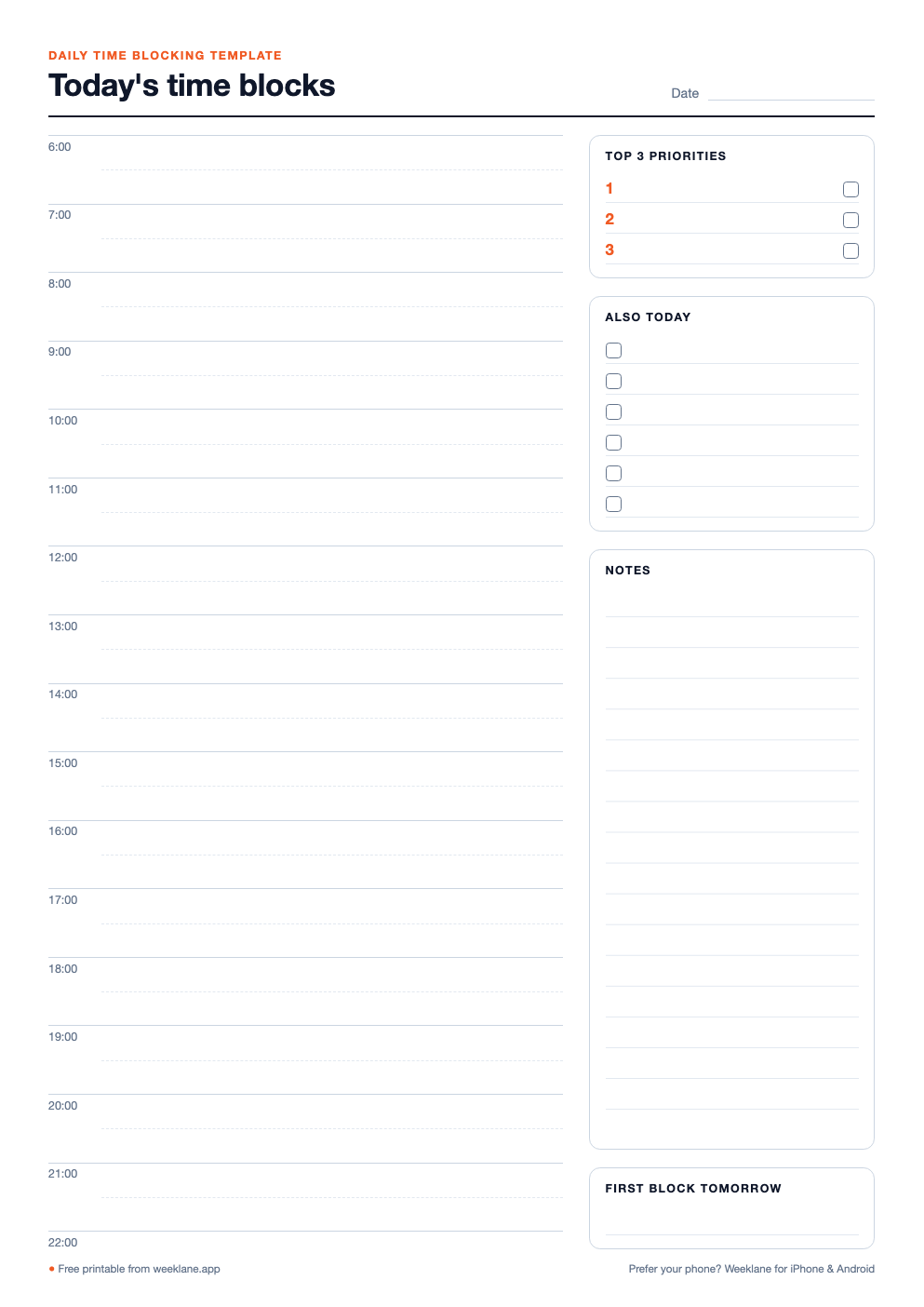
Daily time blocking template
Hourly grid from 6:00 to 22:00 with half-hour lines, your top 3 priorities, an "also today" checklist and notes. One page per day.
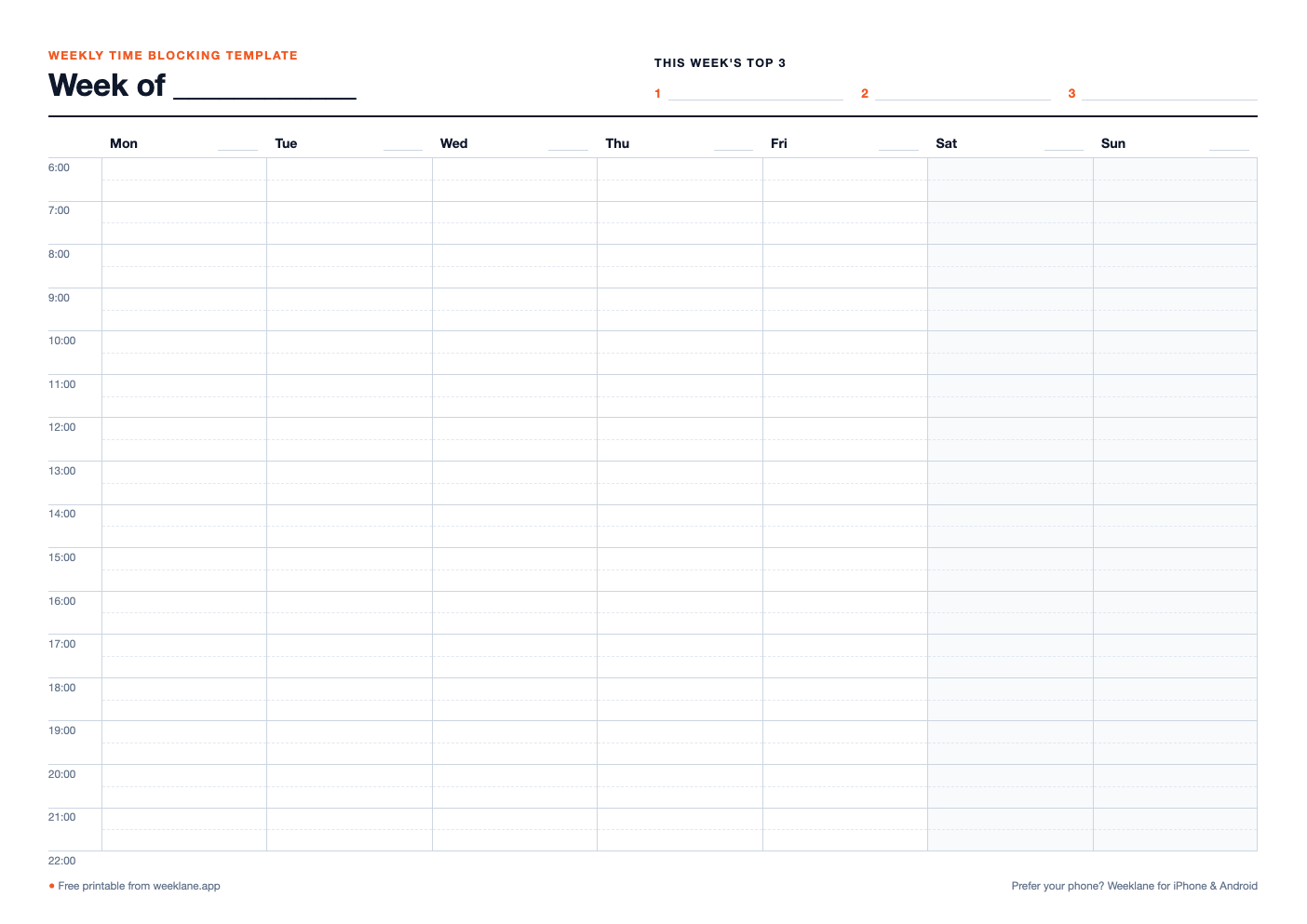
Weekly time blocking template
Seven columns, Monday to Sunday, hourly from 6:00 to 22:00, plus a line for the week's top 3. Landscape, one page per week.
The US Letter versions use a 12-hour clock (6 am to 10 pm); the A4 versions use 24-hour time. Print as many copies as you like, or open the PDF in a note-taking app on a tablet and write on it.
More free planning printables
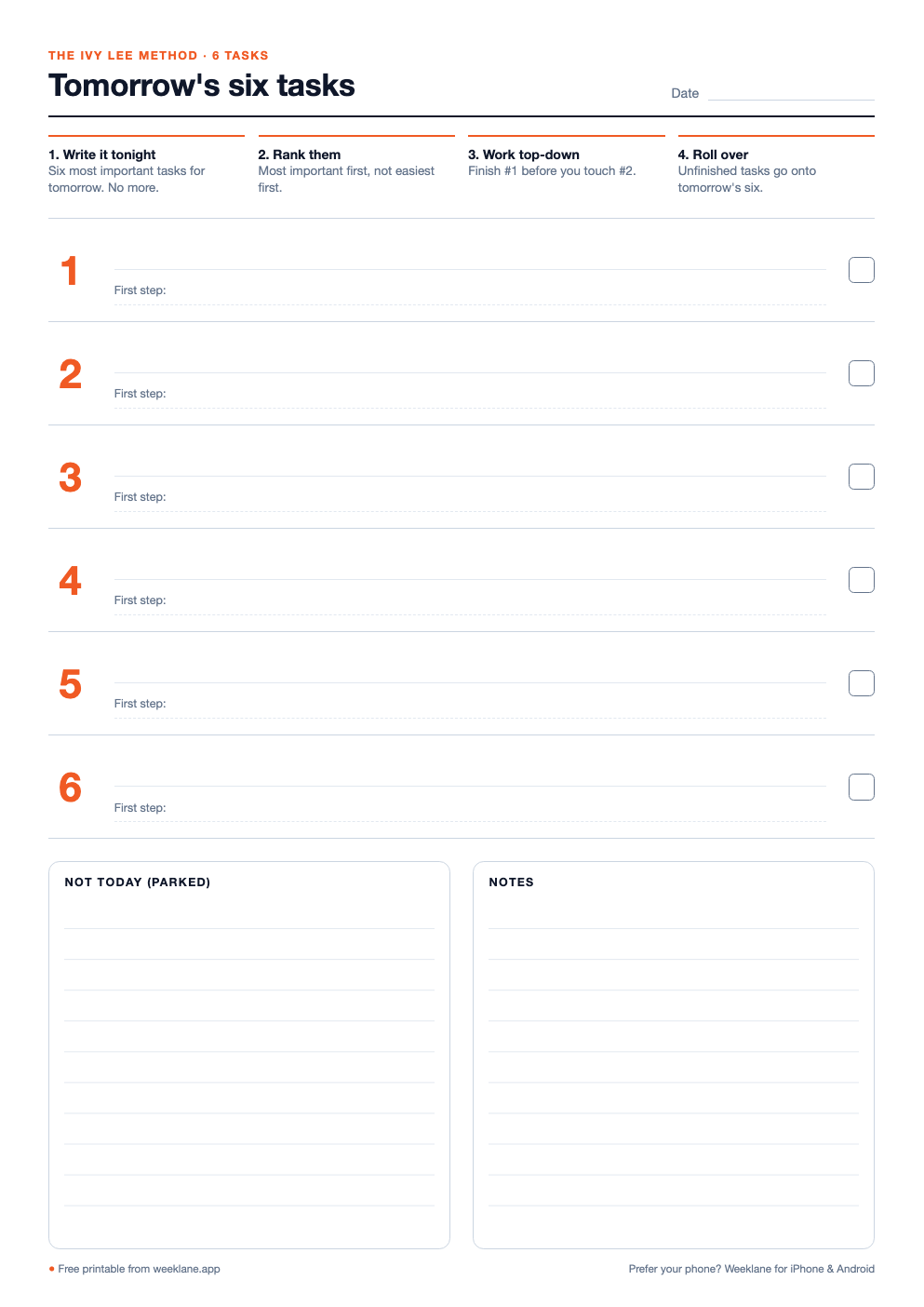
Ivy Lee method: 6 tasks daily sheet
Six numbered task lines with a "first step" prompt and a checkbox, the four Ivy Lee rules at the top, and space for parked tasks.
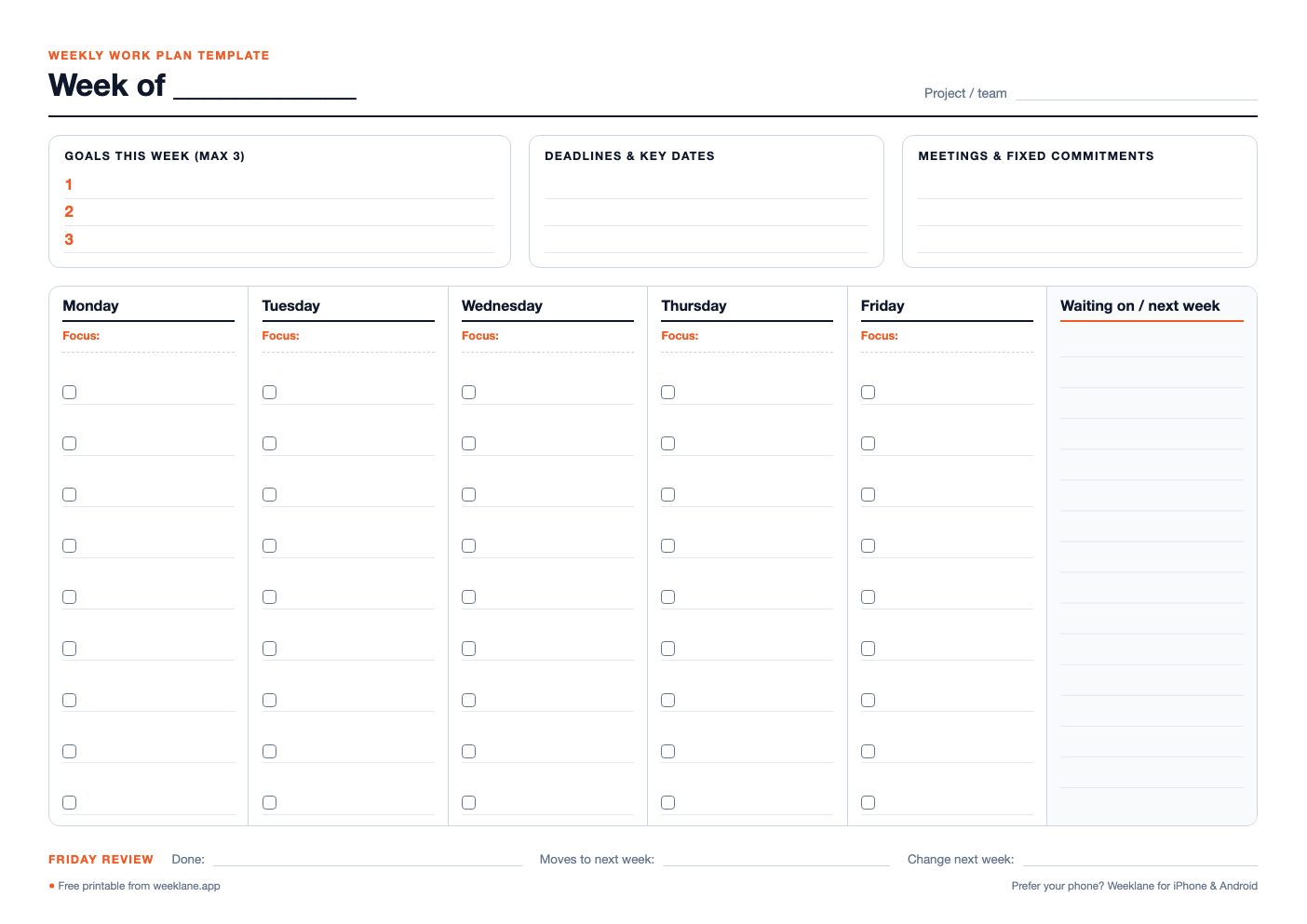
Weekly work plan template
Three weekly goals, deadlines and fixed meetings on top; Monday to Friday columns with a daily focus and task checklist; a Friday review line.
Daily vs weekly time blocking template
| Daily template | Weekly template | |
|---|---|---|
| Answers | When does each task happen today? | Which day does each kind of work belong to? |
| Layout | One portrait page, hourly 6:00–22:00, top 3 priorities, notes | One landscape page, 7 columns × hourly rows, the week's top 3 |
| Fill it in | The evening before (5 minutes) | Sunday or Friday afternoon (15 minutes) |
| Best for | Deep work days, students, freelancers, busy home days | Balancing meetings, deep work and life across the week |
| Watch out for | Filling every hour; nothing left for overruns | Copying Monday's optimism into every day |
New to the method? Start with our guide to time blocking, which covers techniques, a sample day and common mistakes. If six ranked tasks suit you better than a full grid, the Ivy Lee method has its own printable sheet, the 1-3-5 rule has daily and weekly ones, and the weekly work plan template plans the five days before you block them.
How to use a time blocking template, step by step
- Block the fixed commitments first. Meetings, classes, school runs and appointments go in before anything else. What is left is your real capacity.
- Write your top 3 priorities. On the daily page, fill the top 3 box before touching the grid. These are the tasks that get the best hours.
- Give each priority a block in your best hours. One task per block, 60–90 minutes for focused work. Write the task name inside the block, not just a category.
- Batch the small stuff. Email, messages and admin share one or two 30-minute blocks instead of leaking into every hour.
- Leave 20–30% empty. Overruns and interruptions need somewhere to go. A full template breaks the first time something runs long.
- Review at the end of the day. Tick what got done, move the rest to tomorrow, and write tomorrow's first block in the box at the bottom.
Example: a filled-in daily time block schedule
This is how a typical workday looks on the daily template. Adjust the start time to your own day.
| Time | Block | Notes |
|---|---|---|
| 08:00 – 08:30 | Plan and review | Check the week, confirm the top 3 |
| 08:30 – 10:00 | Deep work block 1 | Priority #1 only |
| 10:00 – 10:15 | Break | Away from the screen |
| 10:15 – 11:45 | Deep work block 2 | Priority #2 |
| 11:45 – 12:15 | Shallow work (batched) | Email, messages, small admin |
| 12:15 – 13:15 | Lunch | A real break |
| 13:15 – 15:00 | Meetings / collaborative work | Cluster meetings together |
| 15:00 – 16:00 | Priority #3 | Only if energy allows |
| 16:00 – 16:30 | Buffer | Overflow from any block above |
| 16:30 – 17:00 | Shutdown review | Roll unfinished tasks to tomorrow |
Example: a weekly time blocking layout
Before filling in hours, give each day a shape. This stops every day turning into a meeting day.
| Day | Morning | Afternoon |
|---|---|---|
| Monday | Weekly planning + inbox | Meetings |
| Tuesday | Deep work (2 blocks) | Deep work (1 block) + buffer |
| Wednesday | Deep work (2 blocks) | Meetings |
| Thursday | Calls and collaboration | Deep work (1 block) |
| Friday | Admin, invoices, email | Weekly review + planning |
| Saturday | Personal projects | Free |
| Sunday | Free | Sunday reset (15 min) |
If your work splits cleanly into modes, go one step further and theme whole days: Monday for planning, Tuesday and Wednesday for building, Thursday for people, Friday for admin and review. Fewer decisions, less context switching.
Tips that make a printed template stick
- Keep the stack where you plan. Print a week's worth of daily pages and leave them on the desk, not in a drawer.
- Use pencil. Blocks move. A plan you can erase is a plan you keep using.
- Mark overruns honestly. Draw an arrow when a block runs long. After a week you will know which estimates to pad.
- Do not rebuild every morning. Copy last week's weekly grid and edit what changed. Planning drops from twenty minutes to five.
Frequently asked
Are these time blocking templates free?
Yes. The daily and weekly time blocking templates, the Ivy Lee 6-task sheet and the weekly work plan are free PDFs in A4 and US Letter. There is no email gate or sign-up: click download and print.
What is the best time blocking template for daily and weekly planning?
Use a weekly grid to decide which day each type of work belongs to, and a daily hourly page (with your top 3 priorities next to the grid) to decide the order within the day. The two together prevent over-committing on any single day.
What hours does the daily time blocking template cover?
6:00 to 22:00 in one-hour rows with a dashed half-hour line, so it works for early starts, normal workdays and evening study. The US Letter version uses a 12-hour clock.
Can I use the templates on an iPad or tablet?
Yes. Open the PDF in any note-taking or PDF app that supports handwriting and write directly on it. Duplicate the page for each new day or week.
How much of the day should I block?
About 70%. A template that fills every hour breaks the first time something runs long, which is the most common reason people abandon time blocking.
Run your time blocks from your phone
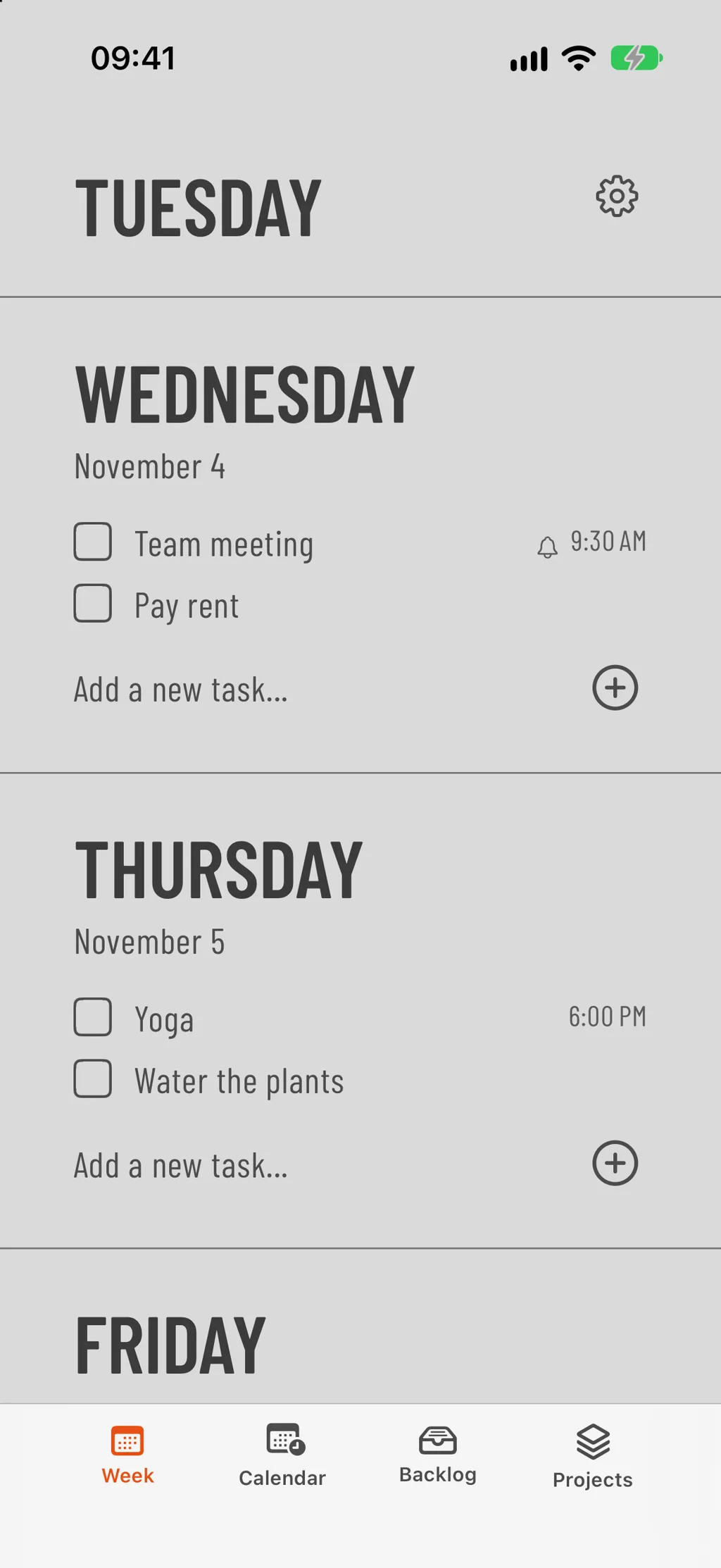
Weeklane shows your week as seven short day lists with Home Screen widgets. Free weekly planner, with a 7-day free trial of Weeklane Pro.


Scan to download
Related guides
- Time Blocking: What It Is & How to Do It — the full method behind these templates.
- Ivy Lee Method: The 6-Task Daily Productivity System — pick the six tasks that fill your deep-work blocks.
- Weekly Work Plan: Free Template and the Best Apps to Run It — a one-page weekly work plan template and the apps to run it.
- Sunday Reset Routine: A 15-Minute Weekly Checklist — the 15-minute reset that refills the weekly grid.
- Weekly Planner App: How to Plan Your Week in 5 Minutes — plan the whole week in five minutes.
- Free Time-Blocking Planner — the same templates, editable on screen.
- Guides